
Workspace modes
Every workspace has one of four modes. In settings, the mode is called Organization type. It shapes the terms, starting settings, and learning focus you see. It is separate from each person’s role and access.
| Mode | Use it for | Terms you may see |
|---|---|---|
| School | Classroom teaching and student practice | Curriculum, learning goal, activity, mastery |
| Business | Workplace training and team development | Skill map, competency, training module, readiness |
| Higher Education | Courses, seminars, and academic work | Syllabus, learning objective, module, proficiency |
| Personal | Self-directed learning and personal practice | Learning map, goal, activity, progress |
Set or change the mode
Section titled “Set or change the mode”Workspace owners and admins can change it:
- Select the workspace you want to manage.
- Open Settings from the workspace menu, then General.
- Under Usage, choose the Organization type.
- Review the Use cases shown for that type and select any that fit.
- Save the settings and check the result.
If the controls are missing or disabled, ask an owner or admin. Changing the mode does not grant new management rights.
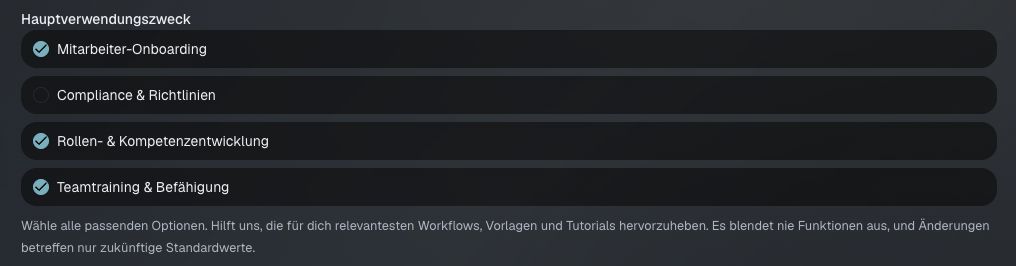
Choose use cases
Section titled “Choose use cases”Mode answers “What setting is this for?” Use cases answer “What do we want to do here?” You can select more than one, such as employee onboarding and skill development.
Use cases help emphasize relevant workflows, templates, and starting settings. They do not grant access or hide features. Leaving the selection empty keeps the mode’s default setup.
What happens to existing work?
Section titled “What happens to existing work?”Mode changes affect future defaults. Published activities stay unchanged. Do not expect a mode switch to rewrite past learning records or work already in progress.
Before publishing new work, review its goals, source material, support, and completion settings. A mode supplies a starting point; it does not replace your judgment.