
Your first steps
Start with the workspace where you want to learn or create. If you are joining an organization, use the account it invited.
1. Sign in
Section titled “1. Sign in”Open Klarisma or your invitation link. Use your usual account or your organization’s sign-in method. If you cannot get in, follow Sign in to Klarisma.
2. Check your workspace
Section titled “2. Check your workspace”Check the workspace name at the top of the sidebar. If you belong to more than one workspace, open that menu and choose Organizations to switch. Each workspace has its own people and content.
3. Know your mode
Section titled “3. Know your mode”Klarisma has four modes: School, Business, Higher Education, and Personal. Personal is for self-directed learning. Compare the modes to see what each changes.
4. Choose your next step
Section titled “4. Choose your next step”- Learning on your own: Start with the Personal guide.
- Learning with an organization: Look under Next up on your home page and start an assigned activity.
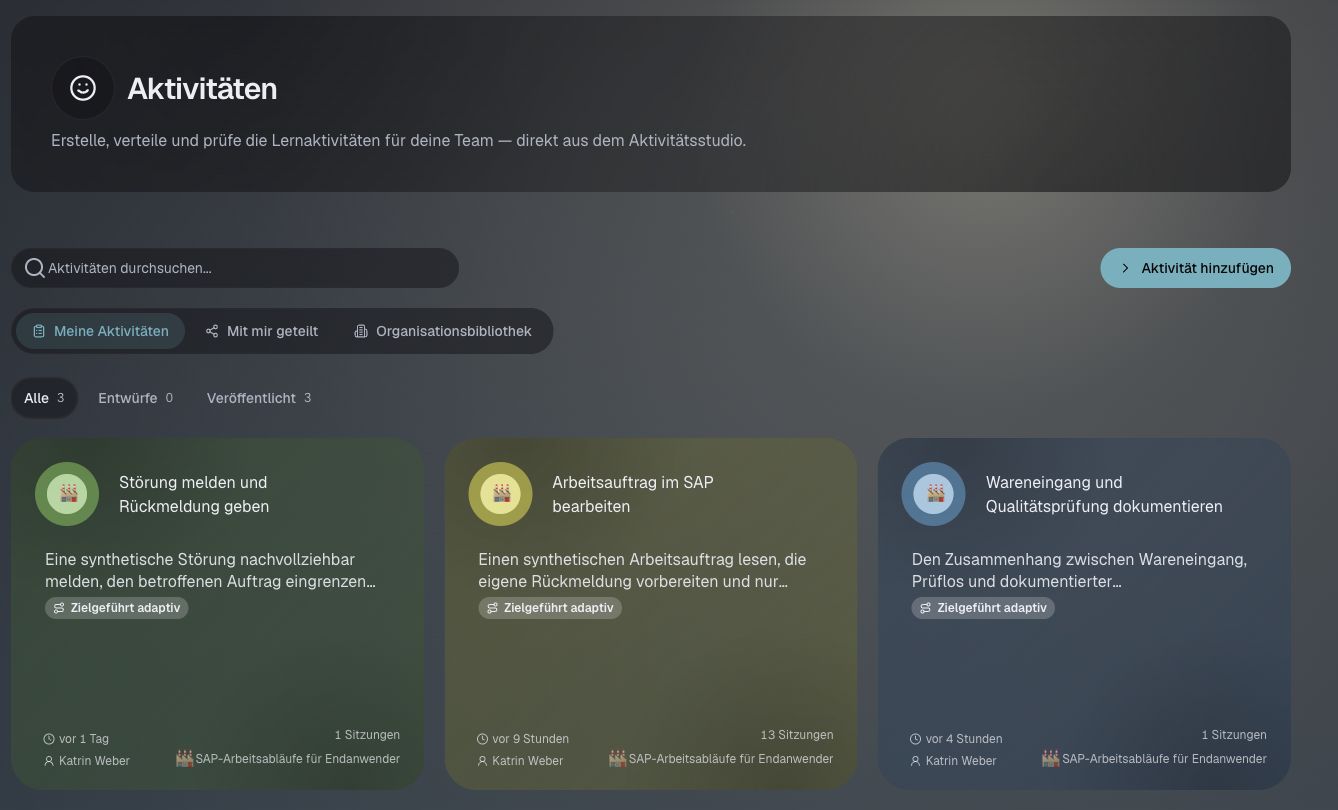
- Creating for others: Create an activity, then preview it before sharing.
- Managing a workspace: Check workspaces and spaces and mode settings.
If your home looks empty
Section titled “If your home looks empty”Check your account and chosen workspace. For shared work, the person who assigned it or your workspace admin can check access. In a personal workspace, an empty view may simply mean you have not added work yet.